How to set up your UFO-Sense device
Before You Begin
Before setting up your device you should write down the following information:
- Your home WiFi name and password. Be careful about character case. If given the choice, select 2.4 GHz. UFO-Sense will not work with a 5 GHz connection.
- Your telephone number for text alerts, in International Format. In the U.S. add the "+1" prefix. For example +13035551234
- Your latitude and longitude. Google Maps is excellent for this. Note that longitude is a negative value in North America. If you are concerned about privacy, choose a location near your home such as an intersection or park. For sighting accuracy, keep the location as close to your home as you feel comfortable.
- Opt-In Permission There are strict laws limiting the use of text messaging in some localities. Note that as a member of the UFO-Track network, you agree to receive automated text message alerts.
Setup Mode
Once you have this data at hand, you're ready to set up your UFO-Sense device. You only need to do this once, unless you move or get new Wi-Fi credentials for your home Internet.
- Plug your device into the USB wall charger. You'll hear a short beep, then a 3-second steady beep.
- During this long beep, unplug the USB from the wall and then plug it right back in. This puts the device into a special setup mode. You should hear a double-chirp every few seconds.
Connecting and Configuring
The rest of the setup is done on your phone. There are two options for the setup, using QR codes, or manually navigating as instructed. Many find the QR codes method easier.
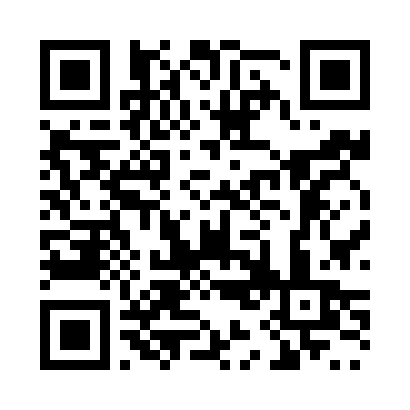
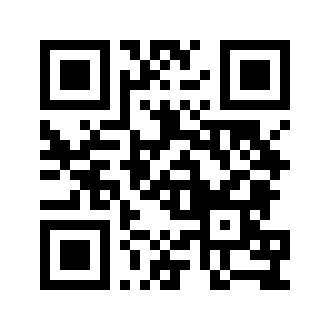
Here is an alternate method that doesn't use the QR codes:
- Go to your phone's WiFi settings and connect to the "UFO-Sense" WiFi network. The password is 12345678. When it connects, it might say "Connected without internet" - that is okay.
- Now open your phone's browser and go to this special temporary web address: http://192.168.4.1
- On that page, enter the data you collected earlier and press the "Save" button. Make sure you have character case correct on your Wi-Fi name and password because some phones change the first letter to upper case automatically.
Normal Automatic Startup
The device should restart automatically, but we suggest you unplug it from the USB, wait a few seconds, then plug it back in the first time. Ignore the long beeps and other beeps that follow while it attempts to connect to your home Wi-Fi. It might take up to a few minutes to connect. If it takes longer then repeat the setup process to double check your Wi-Fi credentials, and perhaps move the device closer to your Wi-Fi router. When you hear five beeps in a row, it is connected to your home Wi-Fi and you're good to go!
Having Trouble Connecting?
Try these 3 tips if your device setup isn't working.
Our device uses a specialized processor that requires a 2.4 GHz Wi-Fi connection. If your setup is stalling or the page won't load, one of these common issues is likely the cause.
1. The "Mobile Data" Issue (Most Common!)
Since our device doesn't have internet access during setup, your smartphone might try to "help" you by switching back to your home WiFi automatically. This breaks the connection to the setup page.
- The Fix: Temporarily turn off power to your home modem.
- Try Setup Again: Scan the QR codes again. Once the device settings are entered and saved, you can turn your modem power back on. Once your home modem is up and running, plug in your UFO-Sense one last time and listen for the five beeps when it connects.
2. Double-Check Your Network Name
When you enter your home Wi-Fi name on the setup page, it must be exact.
- Case Sensitive: "MainStreetWiFi" is different from "mainstreetwifi".
- No Extra Spaces: Watch out for "autocorrect" adding a space at the end of your network name.
- 2.4 GHz vs. 5 GHz: If your router has two separate names (e.g., "Home-5G" and "Home-2.4"), you must type in the name of the 2.4 version. The device cannot see or connect to the 5G version.
3. Mesh Systems (Eero, Orbi, Google, Starlink)
If you have a modern mesh system, you likely only have one network name for both bands. That is okay!
- The device will automatically find the 2.4 GHz signal.
- However: If connection fails, move the device further away from your router during setup (another room is fine). Being too close to a high-power router can sometimes drown out the device's smaller radio.
Still Stuck? Unplug the power cord, wait 5 seconds, and plug it back in to reset the device and try again.
Normal Monitoring Operation
To move the device to a new location in your home, just unplug it and plug it back in. It beeps while connecting to your WiFi, but the device is silent while watching for magnetic or gravitic anomalies.
Testing Your UFO-Sense Device
To test the device without sending an alert to other members, first tap or bump the device to hear the "alive and well" beep. Within 60 seconds of the beep, bring a magnet near, but not touching, the device. Leave the magnet near for a few seconds and this will trigger about 30 seconds of beeps, and a test alert that is sent only to your phone. You'll see "TEST" in the text alert message. If you wait more than 60 seconds, the magnet will cause a REAL ALERT, and all UFO-Track members will a 50-mile radius will also get the text alert messages. Be careful!
How a Real Event Happens
If the Earth's magnetic or gravitational forces change for about two seconds, an alert is triggered. The device will beep for 30 seconds, and text messages will be sent to you and other members within a 50-mile radius.
IMPORTANT: If an event occurs, grab your phone or a camera and go outside to record. The goal is to get multiple camera recordings for significant events.
After an Event
Your event (minus private contact information) will soon show on the map at
https://sightings.ufo-track.com
Also, a short questionaire should arrive soon in your email from UFO-Track. This information can
help us
keep the map up to date, and help us find patterns or corroborating data for events.
UFO-Track's goal is real-time alerting to get multi-witness and multi-recording events to
increase credibility and to allow photo analysis beyond the norm.
If you do see something worth reporting in the sky, please go to https://report.ufo-track.com
and let our membership know what to look for. It is a simple form, taking only a few seconds to fill out
- especially if you pre-fill the location and email
address - which we recommend.
Follow Up!
If you witness something:
- Respond to the email we sent (or write to admin@ufo-track.com) and send in a longer verbal description along with photographs or any other data gathered during the event, so we can post the information on https://sightings.ufo-track.com
- We also strongly suggest you follow up by filing a report at https://mufon.com MUFON specializes in the detailed scientific analysis of sightings after-the-fact.